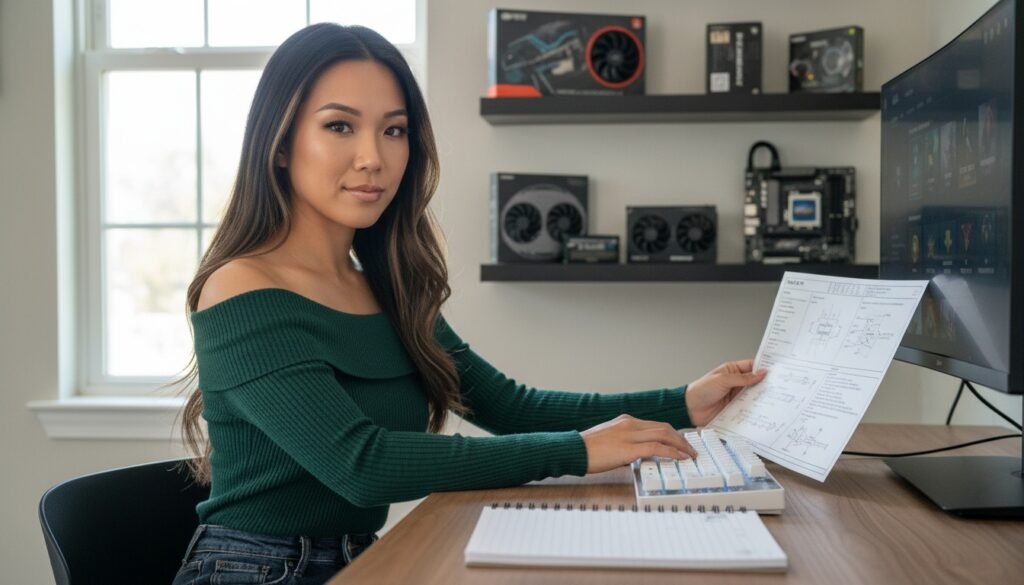
Upgrade what touches your hands and senses before you spend a single dollar on the silicon inside your PC case.
Most budget mistakes happen in reverse. A builder saves for six months, buys a high-tier graphics card, and plugs it into a 60 Hz office monitor sitting on an uneven desk with a peeling cloth pad. The machine renders 180 frames per second. The screen displays 60 of them. The mouse snags on a rough edge every time you sweep across the surface. Money leaves the bank account, but the daily experience remains identical.
A sensible upgrade order fixes the physical interface first, the sensory outputs second, and the raw computing power third. Here is the sequence that delivers the highest return per dollar spent.
The Upgrade Priority Matrix
Before spending money, compare where components sit across cost and immediate impact:
| Priority Phase | Component Category | Typical Cost | Immediate Impact |
|---|---|---|---|
| Phase 0 | Desk layout and cable routing | $0 | Immediate space and stability |
| Phase 1 | Mouse, surface, and key input | $30 – $110 | High tactile consistency |
| Phase 2 | High-refresh display (144Hz+) | $140 – $280 | High visual clarity |
| Phase 3 | Audio and room lighting | $40 – $120 | Moderate sensory balance |
| Phase 4 | Internal PC hardware (GPU/CPU) | $250 – $600+ | Hardware-dependent performance |
Phase 0: The Zero-Dollar Reset
Never buy new gear to fix a problem caused by clutter. Before opening a store tab, clear everything off the desk. Strip the cables, wipe the surface down, and measure your actual usable area in millimetres.
Route your monitor and power cables along the monitor arms or legs using simple twist ties. Move the PC tower off the main mouse path. If your monitor sits too low, use a sturdy book or a wood block to bring the center of the panel inline with your straight-ahead line of sight. This costs nothing, but it establishes the clean baseline you need to evaluate what actually feels broken.
Phase 1: The Input and Contact Surface
Your hands interact with two physical things all day: your mouse and the surface beneath it. This is where modest budgets produce the most noticeable difference.
If your mouse sensor skips or weighs over 110 grams, modern lightweight mice with accurate optical sensors (such as the PixArt 3360, 3389, or equivalent proprietary sensors) start around $40. They track cleanly at high speeds without smoothing or angle snapping on the spec sheet.
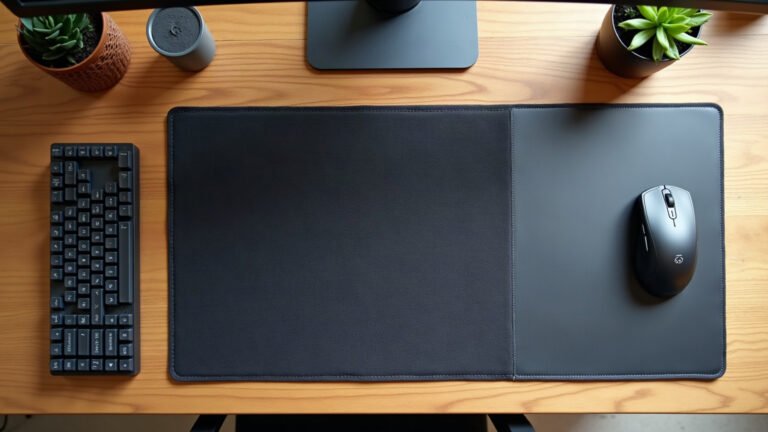
Pairing a modern sensor with a worn or uneven desk creates inconsistent tracking. A quality surface provides uniform dynamic and static friction across your entire range of motion. Instead of small, branded squares that cost $30 and run out of room when you lower your DPI, look at full-coverage desk mats. A standard 900 x 400 mm format with a 3 mm natural rubber base covers the entire keyboard and tracking zone in one flat plane.
The first week you use a unified surface, you will notice your keyboard stops shifting during rapid keystrokes, and your tracking arm has a uniform glide from wrist to elbow.
Phase 2: The Display Pipeline
Once your physical tracking is consistent, upgrade the panel. A high-refresh display changes everything you see, whether you are rendering video, reading text, or tracking targets in motion.
If you currently use a standard 60 Hz or 75 Hz screen, jump straight to a 144 Hz or 165 Hz IPS display. On paper, moving from 60 Hz to 144 Hz cuts frame delivery time from 16.6 milliseconds down to 6.9 milliseconds per frame. Text smearing drops noticeably during fast scrolling.
- Budget choice: 24-inch 1080p IPS panel at 144 Hz to 165 Hz ($130 to $170). Easy for mid-range hardware to drive at native refresh rates.
- Mid-tier choice: 27-inch 1440p IPS panel at 144 Hz to 170 Hz ($220 to $290). Offers sharper text density and broader desktop real estate.
Phase 3: Sound and Room Environment
Avoid headsets that market virtual surround algorithms or flashy LEDs at inflated prices. Look instead at open-back studio headphones or entry-level planar-magnetic models in the $80 to $130 bracket. They offer clear channel separation and neutral frequency curves based on standard audio measurement standards.
To reduce eye strain in low-light environments, add a balanced light source behind your monitor rather than cranking your screen brightness to maximum. If your walls create bare visual echo around your station, framed prints or acoustic panels can balance the space. You can finish the walls cleanly with tailored wall art printed on thick 189 g/m² paper to keep the room feeling deliberate rather than unfinished.
Phase 4: Internal Silicon Upgrades
Only after your inputs, surface, display, and sound are solid does internal silicon make financial sense. When you do upgrade PC components, address the specific bottleneck limiting your frame rate or rendering speed:
- Storage: If your OS runs on a mechanical hard drive or a slow SATA drive, moving to an NVMe PCIe M.2 SSD costs under $60 for 1 TB and eliminates drive-bound hitching instantly.
- RAM: Ensure you run two sticks in dual-channel configuration (16 GB or 32 GB minimum) at your platform’s rated frequency. Single-channel memory cripples modern CPU frame pacing.
- GPU: Upgrade your graphics card only when your current card fails to hit your monitor’s native refresh rate at your preferred resolution.
Addressing Cost and Turnaround
Spreading purchases out across this order prevents buyer remorse. Instead of dropping $700 at once on a new GPU and still feeling dissatisfied with an awkward desk, you spend $40 to $150 per phase, solving real physical problems as you go.
When ordering made-to-order hardware or custom print surfaces, production takes 2 to 5 business days (up to 10 days during peak seasonal volumes) because each piece is printed, cut, and stitched individually. Shipping is free across the United States on every order, and flat-rate from $7.95 elsewhere (free worldwide on orders over $99). If an item arrives damaged, misprinted, or faulty, our 30-day print guarantee covers a full refund or direct replacement with a simple photo claim.
Your Next Action
Do not open a hardware retailer tab just yet. Grab a tape measure, check the clear dimensions of your desk, route your loose wires, and determine whether your current bottleneck is your mouse surface, your monitor refresh rate, or your internal memory.
Lana is MousePady’s brand character — an AI-generated persona created and written by us, not a real person and not a real reviewer. Specifications come from manufacturer data.

Leave a Reply