
Cable management fails the moment you use zip ties on cables you touch more than twice a year.
You see the pristine gallery posts online. Not a single wire hangs beneath the birch butcher block. The power strip is double-sided taped to the underside of the frame. The runs look like industrial copper plumbing. Then, three months later, the user buys a new DAC or swaps a faulty display cable, and the entire structure falls apart because modifying one line requires four cuts with flush cutters and half an hour on their back.
A setup is a working workstation, not a permanent museum exhibit. Cable routing needs to account for reality: peripheral swaps, dust clearing, phone chargers, and the occasional spilled drink. The goal is not zero visible wires at any cost. The goal is a clean line of sight from standing height, zero snagging on your chair wheels, and the ability to pull one peripheral in ninety seconds.
Separate Fixed Lines from Dynamic Lines
Every cable on your desk falls into one of two categories. If you treat them the same way, your system will break.
Fixed Lines
These cables never move unless hardware fails or you move apartments. They belong in closed raceways or screwed-in metal J-channels under the desk.
- Monitor power bricks and DisplayPort or HDMI runs
- PC main power cable
- Ethernet runs
- Powered speaker interlinks and speaker power
- Audio interface host cables
Dynamic Lines
These cables move constantly, get swapped, or travel with you when you leave the house. They belong in open clips, loose hook-and-loop ties, or routed across flexible surface paths.
- Mouse charging cables and custom keyboard coils
- Headphone audio cables
- USB-C phone or laptop charging lines
- Webcam feeds on articulating arms
The first week you separate these two systems, you will catch yourself swapping a keyboard without touching a single under-desk bracket. That is the standard of success.
The Fastener Rule: Hook-and-Loop Over Plastic
Plastic zip ties create tension points that pinch thin copper wiring and make maintenance an active chore. Reusable hook-and-loop straps (often sold as Velcro rolls) hold cables securely without crushing the sheath, and you can open them with one hand.
| Fastener Type | Best Used For | Adjustment Speed | Risk to Cables |
|---|---|---|---|
| Hook-and-loop strap (Velcro) | Main cable bundles under the desk | 10 seconds | Zero |
| Under-desk J-channel raceway | Power bricks, long display runs | 5 seconds | Zero |
| Split wire loom tubing | Drop bundles from desk to wall socket | 30 seconds | Low |
| Plastic zip ties | Permanent rack builds only (not desks) | Requires cutting | High (sheath pinching) |
| Adhesive cable clips | Single routing points on desk legs | Fixed (peel and replace) | Low |
Build the Under-Desk Trunk Line First
Start with everything unplugged. Pull your desk away from the wall. If you try to manage cables while everything remains connected to power, you will build knots around the heaviest cables.
Mount a heavy-duty, surge-protected power strip to the underside of the desk frame, not the floor. Mounting the strip to the desk means every monitor, speaker, and charger moves with the desk surface. If you use a sit-stand desk, this ensures only two cables drop to the wall outlet: the main power strip line and an Ethernet cable.
Creating the Service Loop
A service loop is two to four inches of controlled slack left at either end of a cable run. Without a service loop, slight desk wobble or monitor arm movement puts direct shear stress on your graphics card and monitor ports.
When routing monitor cables down an articulating arm, move the arm to its highest, furthest extension before securing the straps. If you strap the cables down while the monitor is low, moving the screen upward later will rip the connectors out of the backplate.
Managing the Desktop Surface
Once the trunk line lives under the desk, you are left with the surface peripherals: mouse, keyboard, audio controls, and desk pads. This is where physical friction matters more than under-desk tidiness.
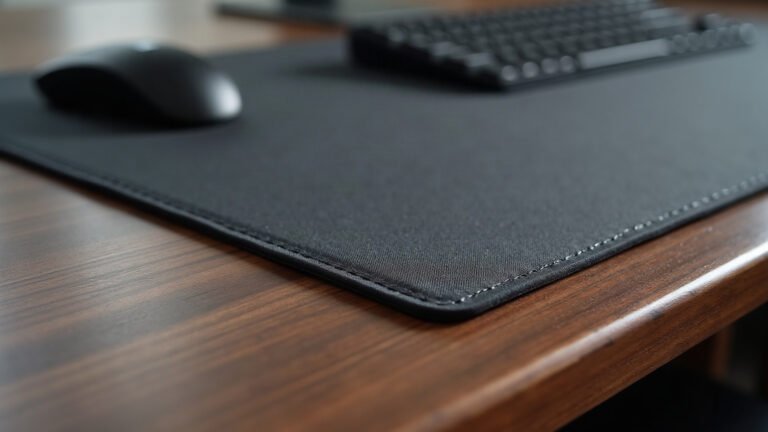
A bare laminate desk surface turns every loose wire into a noise generator and a friction catch. A 900×400 mm desk mat with a 3 mm natural rubber base creates an anchored surface where keyboard cables can sit flat without migrating across the wood. The 100% polyester fabric top gives low-friction glide for your mouse cable if you still use a wired setup, while the textured non-slip bottom prevents the entire workstation layout from shifting when your forearms rest on the edge.
For wired keyboards, route the cable straight back into an adhesive silicone clip positioned behind the monitor stand base. That hides the wire entry point entirely from your seated line of sight.
Pre-Handling the Friction Points
People put off cable routing because they expect it to cost eighty dollars in specialty brackets or take four hours on a Saturday afternoon. On paper, it requires neither.
A single ten-foot roll of cut-to-length hook-and-loop tape costs less than ten dollars at any hardware store. Plastic channel raceways cost around fifteen dollars for a multi-pack. If you do not want to drill into your tabletop, clamp-on metal cable trays attach directly to the desk edge without screws or permanent markings.
The entire physical process takes roughly forty minutes if you follow this order:
- Unplug every peripheral and set it on the floor.
- Mount the power strip directly beneath the desk surface.
- Route and bundle the fixed monitor and PC power lines into the tray.
- Drop the single main power cord to the wall outlet using split tubing.
- Place your peripherals back on your mouse pads and route dynamic cables into open clips with service loops.
The Five-Minute Maintenance Test
To confirm your routing works for daily life, run a basic test. Unplug your main keyboard and remove it from the desk. If you cannot extract the cord without unmounting a power strip or reaching for scissors, loosen that specific bundle and give it an independent hook-and-loop strap.
A well-managed desk is not one where wires are invisible by force. It is one where the hardware works quietly, stays off the floor, and lets you swap components without tearing down your workspace.
Lana is MousePady’s brand character — an AI-generated persona created and written by us, not a real person and not a real reviewer. Specifications come from manufacturer data.

Leave a Reply