
Your mouse does not stutter on a glass desk because the hardware is faulty; it stutters because an optical sensor needs surface contrast to calculate distance, and clear glass provides almost none.
When you slide a mouse across any surface, an internal LED or infrared beam illuminates the area beneath the base. A tiny CMOS camera takes thousands of low-resolution images every second. The digital signal processor (DSP) compares each frame to the previous one, tracking how microscopic peaks and valleys shift across the lens. That shift becomes cursor movement on your screen.
Standard float glass throws that entire calculation off balance. Glass transmits roughly 96 percent of visible light and reflects only 4 percent at normal angles. The sensor beam passes straight through the pane, bounces off your floor or the metal support frame of your desk, and returns an unfocused, scattered image. When the DSP cannot find distinct micro-textures from one frame to the next, it drops tracking frames. Your cursor stops, jumps, or moves at half speed.
Why a newer mouse sensor will not solve the glass problem
Buying a flagship mouse with a 30,000 DPI sensor will not resolve tracking loss on transparent glass. Modern optical sensors, including the PixArt PAW3395 and similar enthusiast-grade units, are tuned for ultra-low lift-off distances and microscopic surface detail. When placed on clean, transparent glass, their high resolution works against them. The sensor sees no focal plane, so the tracking engine enters an error state.
Some office-oriented mice use specialized laser sensors designed to track on glass. The spec sheet for these sensors shows they work by focusing on tiny surface scratches and dust particles on glass at least 4 mm thick. However, these sensors carry distinct trade-offs for daily computer use: lower polling rates, higher input latency, and noticeable cursor smoothing that feels sluggish during fast hand movements.
Three fixes you can test right now for zero dollars
You do not need to replace your mouse or replace your desk to confirm the cause of the stutter. You can test these zero-cost adjustments in less than two minutes:
- The matte tape patch: Place a small strip of matte translucent tape directly onto the glass surface where you move your mouse. If the tracking instantly smooths out over the tape, your sensor and firmware are working properly.
- Adjust lift-off distance (LOD): Open your mouse configuration software. If your driver includes an LOD or surface-tuning setting, switch from low to high. A higher lift-off distance widens the focal tolerance of the sensor lens, which occasionally allows the sensor to pick up faint reflections on frosted or lightly tinted glass.
- The single-sheet paper test: Tape a single sheet of standard 80 gsm copy paper to your desk. If your mouse tracks with zero stutter across the paper, the issue is entirely optical refraction through the glass.
Comparing your options for glass desk tracking
Once you confirm the glass is causing the tracking failure, you have several ways to create a functional tracking surface. Each approach comes with different practical compromises:
| Surface Option | Tracking Reliability | Desk Coverage | Practical Drawback |
|---|---|---|---|
| Raw Glass | Poor (0-20%) | Full Desk | Constant frame drops and dropped clicks |
| Frosted Glass Film | Moderate (60-80%) | Custom | Prone to air bubbles and edge peeling |
| A4 Copy Paper | High (100%) | 210 x 297 mm | Slides around; wears out in days |
| Fabric Desk Mat | High (100%) | Up to 900 x 400 mm | Requires measuring your desk width first |
The permanent fix: adding a dedicated tracking layer
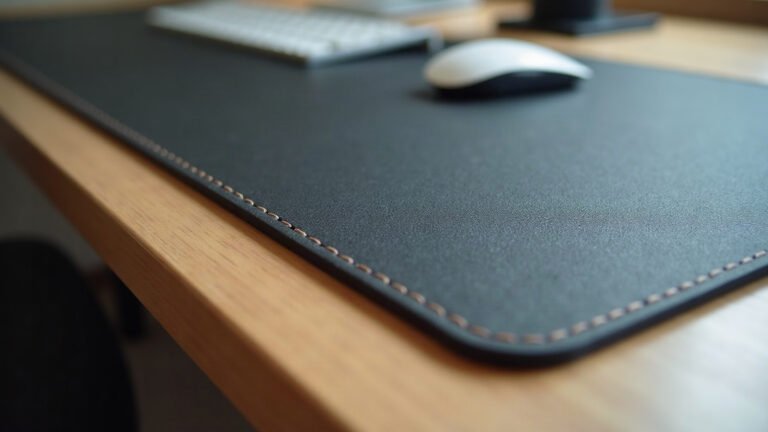
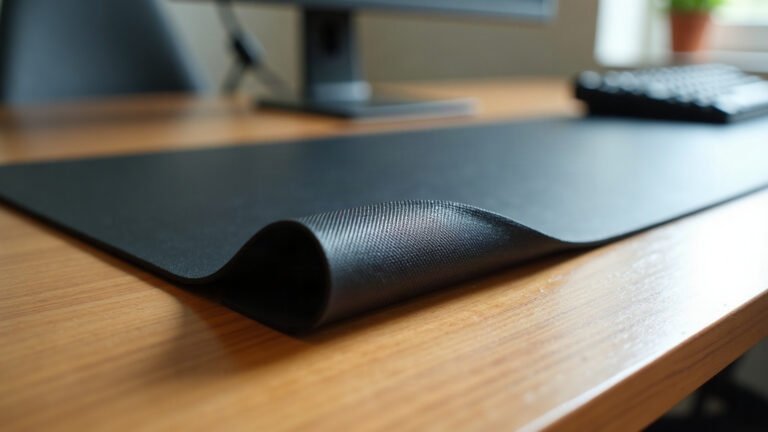
The standard way to solve glass tracking permanently is to place a micro-textured textile layer between the glass pane and the mouse base. A woven cloth surface gives the optical sensor distinct, high-contrast thread intersections to track at 1,000 Hz or higher without dropped frames.
Small standalone pads solve the sensor problem, but on a slick glass desk, unbacked pads slide across the surface whenever your wrist shifts weight. A full-sized mat provides consistent tracking across your entire work area while staying anchored to the glass.
MousePady builds large-format desk mats designed specifically to lay flat on slick surfaces. The base uses 3 mm thick natural open-cell rubber that grips smooth float glass without sliding or shifting under hand pressure. The top layer is a high-density micro-woven polyester fabric printed via edge-to-edge dye sublimation. Because the dye is bonded directly into the polyester yarn rather than coated on top, the tracking surface remains uniform across the entire mat.
The first week you use a textile surface on your glass desk, you will catch yourself forgetting that the tracking issue ever existed. Your cursor lands exactly where your hand intends, without micro-stutters or dead zones.
Choosing the right size for your desk layout
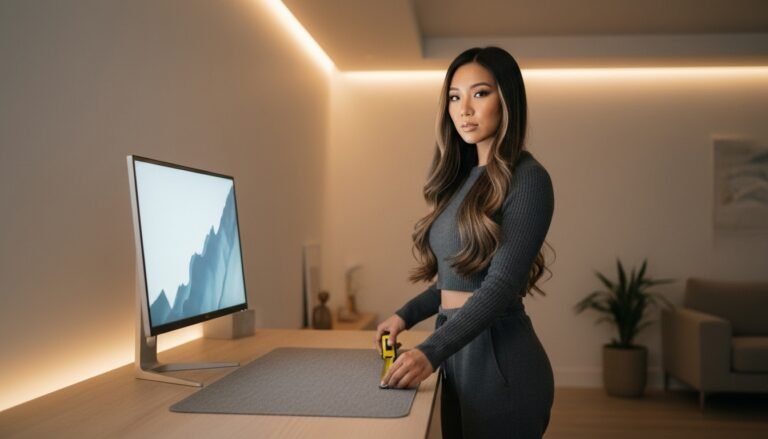
Before you choose a mat, grab a tape measure and check your actual desk dimensions. Placing an oversized mat on a glass desk causes the edges to overhang the bevelled glass border, which creates uneven resting spots for your keyboard.
If you only need space for mouse movement next to a compact keyboard, our 800 x 300 mm size covers the core working zone. If you use a full-sized keyboard with a numeric keypad and prefer your arms to rest on the same surface, the 900 x 400 mm format covers the central desk area cleanly. For smaller individual setups or dedicated gaming zones, standard mouse pads offer the same 3 mm rubber base and dense tracking weave in a more compact footprint.
Ordering, production, and the MousePady print guarantee
A mass-produced black mat from an online marketplace often costs $15 to $25, but frequently arrives with raw cut edges that fray within weeks and low-grade foam that fails to grip glass. Dedicated high-end gaming mats can run $80 to $100 for basic branding.
Every MousePady mat is printed to order to eliminate warehouse waste. Production takes 2 to 5 business days, extending up to 10 business days during peak seasonal periods. Shipping is free everywhere in the United States on every order, with flat-rate shipping from $7.95 for international orders (and free worldwide shipping on orders over $99).
We back our production with a straightforward print guarantee: if your mat arrives damaged, misprinted, faulty, or is lost in transit, contact us within 30 days with a clear photo of the issue. We will issue an immediate free replacement or a full refund. We do not require you to ship anything back.
Take thirty seconds to measure the usable width of your glass desk, pick your dimensions, and eliminate mouse stutter for good.
Lana is MousePady’s brand character — an AI-generated persona created and written by us, not a real person and not a real reviewer. Specifications come from manufacturer data.
Leave a Reply